Your product. A clearer story.
Presagio Help Center · Founder experience · Updated 11 September 2026
Start with an answer. My brief opens your saved journey automatically. Explore the full journey, then investigate a finding and its exact evidence. If your product is not connected, a guided setup helps you bring in the first signal. You never need to define events before collecting them.
A practical guide for founders, administrators and the developers connecting their product. Start with the outcome you care about, then follow the evidence all the way to an individual journey.
Which experience am I looking at? The workspace at presagio.in/app uses your stored events. The interactive demo uses sample data. Screenshots show the actual Presagio interface with illustrative data. Your workspace uses your own collected events, including the same data-driven journey waves.
1. What Presagio gives you
Presagio helps answer three practical questions: Are people reaching value? Where does progress slow down? Which events support that conclusion? The private beta connects deliberate website events to reusable definitions and ordered journeys. The founder brief combines a saved business question with real journey evidence. Opt-in page views and the traffic overview help you understand arrivals before saving a custom journey.
You choose the moments that matter. For a SaaS product, that might be trial started → first useful result → subscription. For a collaboration tool, it might be workspace created → teammate invited → shared project completed. Track observable actions, not assumptions about satisfaction or intent.
| Capability in this release | What it helps you do |
|---|---|
| Secure Google sign-in and approved workspace access | Keep product data scoped to the people permitted to see it. |
| Projects, Production/Test environments and website sources | Separate products and testing activity before interpreting results. |
| Consent-aware browser SDK and scoped collection keys | Send deliberate events with explicit permission and exact website origins. |
| Durable event collection, retry deduplication and metering | Handle lost responses without counting the same event twice. |
| Live event inspector | Check what was actually stored before building reports. |
| Event definitions, previews and immutable versions | Turn raw signals into meaningful milestones, including rules created after capture. |
| Ordered journeys with clickable evidence | Measure progression and inspect the events behind a milestone. |
| Pending versus elapsed conversion windows | Avoid calling someone a drop-off while they still have time to convert. |
Alongside your journeys: Activity opens Traffic: browser visitors, observed sessions, page views, referring sites and campaign context. Detailed events shows the matching records; Event types preserves discovery without requiring definitions. Acquisition provides first-touch, last-touch and last-non-direct conversion evidence. These are descriptive analytics, not verified revenue or proof of causal impact.
Private session evidence: From a journey, conversion or detailed event, use Find recording and Watch session to investigate the interaction. Replay requires website enablement, SDK opt-in and separate visitor consent. Read the session replay setup and privacy guide for the first version’s limits.
What makes the approach distinctive: Presagio combines an outcome-oriented visual experience with traceable counting rules. The cinematic waves make a journey easy to scan; the milestone counts, pinned definitions and evidence timeline explain it. This describes the product's design, not a claim that no other analytics platform offers similar capabilities.
Not included in this beta: native iOS/Android SDKs, cross-device identity stitching, server-side identify APIs, automatic analytics click capture, heatmaps, AI recommendations, email alerts, revenue attribution, advanced custom reports, self-service team invitations or subscription checkout. Some appear as concepts or planned features on the public site. They are not enabled workspace capabilities.
2. Start with one business question
A useful first journey is small enough to explain in a sentence. For example: “Of the visitors who start a trial, how many reach their first useful result and subscribe within seven days?”
- Choose two to five observable milestones.
- Give each underlying event one consistent name.
- Decide which properties are necessary to distinguish meaningful activity.
- Choose a conversion window that matches your product's buying cycle.
- Test with synthetic activity before enabling your real production source.
| Business moment | Raw event example | Deliberate properties | When to send |
|---|---|---|---|
| Trial begins | trial_started |
plan: "founder" |
After trial creation succeeds. |
| First useful result | value_reached |
feature: "first_report" |
After the useful result is successfully available. |
| Subscription confirmation | subscribed |
plan: "founder" |
After the frontend receives a successful confirmation. |
A browser subscription event is an analytics signal. It is not an independently verified billing ledger. Don't infer revenue or successful payment from a button click or from the event name alone.
3. Get access and create your workspace
Open the application and choose Continue securely. Complete Google sign-in using the account approved for your beta invitation. Google sign-in and Presagio admission are separate steps: successful authentication can still leave your account awaiting approval.

Figure 1. The real application's pending-access screen. “You're on the guest list” means you have signed in; it does not yet grant workspace access.
If you see this screen, ask the Presagio team to approve your account, then choose Refresh account. Google is currently configured for a controlled test audience, so a new participant may also need to be added to the Google test-user list. Do not create repeated accounts to get around admission.
Once approved:
- Enter your company or workspace name and choose Create.
- Name your product under What are you building? and choose Create.
- Select the product and its Test environment for initial integration work. Projects receive separate Test and Production environments.
- Follow the first-connection wizard and add a website source, such as “Marketing website” or “Product app”. Later, reopen it from Settings → Connection & installation.
- Ask the Presagio team to activate collection for the intended source. A source can be saved before it is ready to collect.
Two different gates: account approval lets you use the workspace. Source activation lets a website collect events. Creating a key does not activate a source.
4. Understand your workspace and dashboard
The navigation stays at the top across your brief, full journey and investigation. Your workspace, product and environment set the data scope. Test and Production stay separate.
| Surface | Start here for | Next action |
|---|---|---|
| My brief | Your selected journey’s supported completion and friction answer. | Show me where, or explore the full journey. |
| Full journey | The complete ordered path, progression and unfinished steps. | Select a transition or inspect its evidence. |
| Finding investigation | A focused transition with progressed, pending and elapsed groups. | Open the anonymous visitor timelines behind that group. |
| Activity | Traffic first, with separate referrers and campaigns; Detailed events and Event types alongside it. | Inspect the records behind a count, then use discovered signals in journeys. |
| Acquisition | Campaign and referral credit for a selected conversion rule. | Compare attribution models and inspect the contributing touches. |
| Settings | Connections, keys, traffic overview, event inspector and advanced definitions/journey revisions. | Configure deliberately without interrupting the everyday brief. |

My brief, using illustrative events stored in an isolated workspace and the actual application renderer. Your own supported journey displays the same waves with your retained data.
Your brief remembers your perspective on this browser. Workspace, product, environment, focus, exact journey revision, entrant period and completion window are scoped to your signed-in account. These preferences are local to this browser; they do not sync to another device, and clearing browser storage clears them. Access is checked again before any data is shown. An unavailable saved revision is explained rather than silently replaced by a newer meaning.
A saved journey loads automatically. Without one, Presagio can show traffic where page views exist, or received custom activity. A quiet reporting window is different from a never-connected source. Loading, unavailable data and report limits are shown explicitly; they do not become invented zeroes. Reports refresh on deliberate actions and filter changes, not as an unbounded live stream.
Read the traffic overview
After enabling web mode in your SDK, open Activity → Traffic. Choose the intended workspace, product and environment, then:
- Choose All website sources or a single Website source. This filter belongs to Overview; the source selected in connection setup does not silently narrow it.
- Choose Last 24 hours or Last 7 days. These are rolling 24-hour and 168-hour windows ending at the query time, not complete calendar days.
- Choose UTC or your browser's named Local timezone. The report displays the actual timezone and window. A browser already using UTC has no duplicate Local option.
- Read Browser visitors, Sessions observed and Page views together. Inspect the dated trend and View chart data for exact bucket boundaries and counts.
- Compare Pages, Countries, Arrivals, Devices, Browsers, Operating systems and Languages. Every ranking counts page views, not people or conversions.
- Use Refresh interval for current stored evidence. Changing scope, period or timezone clears the old result while the new query runs; a failed query never substitutes sample activity.

Earlier overview illustration with sample data. Activity now uses the Traffic / Detailed events / Event types navigation described above; your workspace displays your own retained evidence.
Browser visitors counts distinct browser IDs within each source, over the entire period. It does not identify people or merge devices and sources. Sessions observed counts source-scoped browser/session combinations with a page view in the window; these are not necessarily sessions that began in that window. Neither total is a sum of daily unique counts. Page views counts stored qualifying page_view version-1 events, including older manual page views without context. General custom events do not become page views because they include a page name.
For the 24-hour view, chart buckets represent elapsed UTC hours, with labels displayed in your selected timezone. The seven-day view uses calendar-day boundaries in that timezone; daylight-saving transitions can make a local day 23 or 25 hours long. The rolling window clips its first and last buckets. Use the table's exact timestamps instead of assuming every displayed bucket covers a complete hour or day. Changing timezone changes grouping and labels, not the intended elapsed length of the reporting window; queries run at a new current time.
The header totals are exact within the report cap. Each ranking shows up to 20 groups, with omitted page views disclosed separately when applicable. An OVERVIEW_LIMIT error means more than 10,000 candidates matched: choose Last 24 hours or one website source. No partial headline count is presented as complete.
Countries use approximate ISO two-letter location codes, or Unknown, from a trusted country lookup. They are not nationality or an exact location. IP geolocation by DB-IP, using Country Lite under CC BY 4.0. A missing or unavailable lookup remains Unknown; raw IP is not included in the event or stored reporting context. Missing legacy/browser context also remains Unknown. The coverage line states how many page views contain web context and an available country.
Referring sites and Campaigns are separate page-view rankings. A tagged page view can appear in both. Referrer unavailable is not proof of direct traffic. First pages observed counts the earliest retained page view per source/browser/session in the selected interval; this may not be the original landing page before consent or outside the interval.
Click a ranking to open Detailed events, with the same source, fixed occurrence-time interval and filter. Open a row for occurred/received timestamps and stored fields. Back to Traffic restores your selection; Refresh starts a new interval. The Event types diagnostic catalogue explicitly uses receipt time and its own discovery window across the environment. Traffic filters remain saved but do not silently filter that catalogue.
Explore conversion credit carries compatible scope into Acquisition. Choose one website source and a conversion milestone. Any unsupported Traffic filter and the move to a rolling conversion window are explained before continuing. A referrer page view alone never establishes conversion credit.
The evaluated-at time indicates when the query ran, not that collection has caught up to that instant. Processing delay, late activity, retention and deletion can change results. Bots may be included; browser counts are not verified humans.

Overview empty state, captured from an isolated local fixture. No page views in the selected window is different from a disconnected source or a failed query. No illustrative values are inserted into the real report.
Build a campaign link in Acquisition
Open Acquisition → Make your next campaign recognizable. Enter the destination and a source or campaign, then create, inspect and explicitly copy the link. Duplicate or conflicting tags are rejected. Other query parameters and fragments remain; check them for personal data before sharing. The builder never opens the destination or saves the draft to a server, browser history or preferences.
In Connection & events, select Include campaign attribution for the generated package. This option is off by default and changes only the displayed/copied package. Wire the granted-consent callback; cookieless mode does not capture attribution touches. Existing integrations can enable attribution and call captureArrival() after consent on eligible arrivals, never on every internal route.
Verify on a Test source: open the tagged link, grant consent and perform the outcome. In Activity → Detailed events, inspect presagio_attribution_touch and the outcome event. Then compare First touch, Last touch and Last non-direct in Acquisition. Traffic alone does not prove attribution capture; model credit does not verify advertising clicks or causal impact.
Acquisition and attribution
With the current release, configure attribution: { enabled: true } in the same SDK instance and call captureArrival() after analytics consent for an eligible entry. This is separate from web page-view context: web mode alone does not create attribution touches. Continue sending business events only from the successful business action, never merely because consent was granted.
// Add alongside web in your createPresagio configuration:
// attribution: { enabled: true }

function onAnalyticsConsentGranted() {
  analytics.setConsent('granted');
  analytics.captureArrival();
}

function onSubscriptionConfirmed() {
  analytics.track('subscribed', { plan: 'founder' });
}
Use this callback only after enabling attribution. The default arrival is remembered once per SDK instance. A later distinct external arrival in a long-lived application requires a fresh stable arrival ID; reuse it when retrying that same arrival. Do not call every internal route change or session timeout a new arrival. Never infer known direct traffic merely from an empty browser referrer. Keep campaign tags free of personal information.
Open Acquisition, choose one website source, a published conversion definition and Last 24 hours or Last 7 days, then choose Reveal attribution. Compare First touch, Last touch and Last non-direct, and expand conversion evidence. Models use a seven-day lookback and source-local browser identity. Counts represent distinct matching conversion events, not customers or verified revenue. Capture history is unknown and results remain provisional. Touch events use the ordinary queue, retention, deletion and event-usage allowance; they are not free invisible tracking. Attribution cannot recover campaigns that were never captured.
Roles and administration
Owners and admins can configure the products they are authorized to manage, create or revoke keys, and publish definitions and journeys. Viewers have read-only access. Workspace membership and private-beta approval are operator-managed in this release. There is no self-service team invitation, ownership-transfer or billing screen.
Sign out using the header control. Sessions expire after 12 hours; if the app asks you to sign in again, do so before continuing. Losing access or changing membership can remove a previously visible workspace.
5. Configure a website source and collection key
First-time setup is a short sequence, available later from Settings → Connection & installation:
- Bring your product into view: name the missing product or website source; existing choices are reused.
- One connection. Every signal: confirm an exact allowed website origin and create the integration package.
- Waiting for your first signal: install the package, connect consent callbacks, and perform a real action in your product. Choose Check stored activity.
- Your product is speaking: explore actual retained events. A source’s historical stored-event receipt prevents a quiet window from sending you through installation again.
Enabled means a source may collect. An accepted response means the collector accepted the batch. A stored event confirms persistence. These are different states. New sources still require operator activation. The wizard never grants consent, sends a synthetic event or activates collection on your behalf.
In the guided package, confirm one exact website origin. Existing keys remain manageable; advanced connection tools support additional configured origins.
- Valid production example:
https://app.example.com. - Another host, such as
https://www.example.com, must be listed separately. - An origin contains the scheme, host and optional port. Do not include a path, query string or wildcard.
- Loopback testing can use an exact origin such as
http://localhost:5173;localhostand127.0.0.1are different origins. - Production websites require HTTPS. Use a separate Test source and key for development.
Choose Create integration package. Copy the installation snippet while the key is visible, then choose I've saved it — hide key. The UI creates keys with a 90-day lifetime and shows the raw value only once. If it is lost, create a replacement and revoke the unused key.
A collection key is a public write identifier intended for frontend code. It is not a login credential, does not grant analytics read access and cannot approve users. Origin restrictions are one protection; they do not make a browser key secret or prove the sender's identity.
To rotate a key, create its replacement for the same source, update the frontend, verify delivery and then revoke the old key under Manage existing keys. Revocation is permanent. Rotating within the same source preserves that source's browser identity continuity.
6. Install the SDK: configuration checklist
You configure the tracking code in your own product's frontend, not inside the Presagio dashboard. Use the exact source ID and public key from the generated snippet.
| Setting | Example | Required action |
|---|---|---|
| SDK module | https://presagio.in/sdk/presagio.mjs |
Import in the browser, or vendor it into your frontend build. |
| Classic script | https://presagio.in/sdk/presagio.js |
Alternative exposing window.Presagio. Choose one installation style. |
endpoint |
https://presagio.in/v1/events/batch |
Use the collection URL from your snippet. |
key |
YOUR_PUBLIC_COLLECTION_KEY |
Replace this placeholder with the generated write key. |
sourceId |
YOUR_SOURCE_UUID |
Replace with the source's actual UUID. |
| Consent callbacks | Granted / denied | Wire to your consent manager; initialization alone sends nothing. |
web — opt-in |
{ enabled: true, pageViews: 'auto', spa: true } |
Enable consent-aware page views only with the matching SDK/runtime release. |
| Business event calls | track() |
Send after the actual product action succeeds, not after consent alone. |
| Manual page views | page() |
Use deliberately in manual mode; automatic mode already captures the initial page. |
| Content Security Policy | Script and connection permissions | Allow the SDK location and collection endpoint in your site's policy. |
Use the SDK and collection endpoint from your generated package. Existing integrations remain manual unless web mode is explicitly enabled; switching the dashboard does not alter your frontend tracking configuration.
There is no published npm package in this beta. Do not invent an npm install presagio dependency. The hosted module is self-contained. If your bundler cannot import HTTPS modules, vendor the downloaded module under a reviewed, versioned filename in your application and import it locally.
Option A: browser module
Save this as a browser module such as analytics.js and load it with <script type="module" src="/analytics.js"></script> in your product. Replace both placeholders first.
import { createPresagio } from 'https://presagio.in/sdk/presagio.mjs';

export const analytics = createPresagio({
  endpoint: 'https://presagio.in/v1/events/batch',
  key: 'YOUR_PUBLIC_COLLECTION_KEY',
  sourceId: 'YOUR_SOURCE_UUID',
  web: { enabled: true, pageViews: 'auto', spa: true },
  onDiagnostic: ({ code, count }) => {
    // Optional development diagnostics. Do not log customer payloads.
    console.debug('Presagio', code, count);
  },
});

// Connect these functions to your actual consent manager.
export function onAnalyticsConsentGranted() {
  analytics.setConsent('granted');
}

export function onAnalyticsConsentWithdrawn() {
  analytics.setConsent('denied');
}

export function onTrialCreatedSuccessfully() {
  analytics.track('trial_started', { plan: 'founder' });
}
These functions are integration examples, not automatic browser hooks. Your application must call them at the appropriate time. If valid permission already exists on a new page load, your consent manager must communicate that grant to this SDK instance again.
Option B: classic script
Load the SDK before your own initialization script:
<script defer src="https://presagio.in/sdk/presagio.js"></script>
<script defer src="/analytics-init.js"></script>
In your own analytics-init.js:
const analytics = window.Presagio.createPresagio({
  endpoint: 'https://presagio.in/v1/events/batch',
  key: 'YOUR_PUBLIC_COLLECTION_KEY',
  sourceId: 'YOUR_SOURCE_UUID',
  web: { enabled: true, pageViews: 'auto', spa: true },
});

// Wire this to your consent manager's positive analytics decision.
function onAnalyticsConsentGranted() {
  analytics.setConsent('granted');
}

function onAnalyticsConsentWithdrawn() {
  analytics.setConsent('denied');
}

// Call after the product action succeeds, and only after permission.
function onFirstReportReady() {
  analytics.track('value_reached', { feature: 'first_report' });
}
Use one client per source in a page. Installing both options creates duplicate instrumentation risk. Two separate calls to track() create two distinct events even if the names and properties are identical; retry deduplication does not correct duplicate tracking calls.
7. Frontend integration: React, routed apps and website builders
React or another client-rendered app
Initialize once at the application boundary. Keep the client in a shared module or provider, not in every button or page component. For a React app, the following client wrapper is one option after you vendor the SDK into src/vendor/presagio.mjs:
import { createPresagio } from './vendor/presagio.mjs';

let client;
export function getAnalytics() {
  if (typeof window === 'undefined') return null;
  client ??= createPresagio({
    endpoint: 'https://presagio.in/v1/events/batch',
    key: 'YOUR_PUBLIC_COLLECTION_KEY',
    sourceId: 'YOUR_SOURCE_UUID',
    web: { enabled: true, pageViews: 'auto', spa: true },
  });
  return client;
}
Then call getAnalytics()?.setConsent('granted') from your consent integration and getAnalytics()?.track(...) after a successful user action. Initialize only in a browser context. For server-rendered applications, keep SDK initialization and event calls inside client-side code; this SDK is not a server ingestion client.
Do not send business events during React render. An effect may run again in development or after remounting. Prefer the confirmed action handler, and ensure your application invokes it once for the business action. If a component owns its own SDK instance, destroy that instance during cleanup and recreate it on the next mount; never reuse a destroyed instance.
Single-page application routes
With candidate web mode enabled and pageViews: 'auto', granting consent captures the current page once. With spa: true, pathname changes via pushState, replaceState and popstate capture the next page view. Do not add a duplicate initial page() call. Query-only and hash-only changes do not create page views. Pre-consent navigation is not replayed. A browser back/forward-cache restoration does not automatically create another page view on pageshow.
Choose pageViews: 'manual' in web mode if your router should call analytics.page() or analytics.page('Pricing') explicitly. Manual and automatic calls share a successfully queued route-visit marker in web mode. Existing integrations without web.enabled retain their original manual behavior. Custom track() events do not automatically receive web context.
Minimize page context before capture
Web mode reads browser context only after consent and attaches optional version-1 fields: minimized path, external referrer domain, device/browser/operating-system family, language, timezone and observed acquisition classification. It never sends the complete URL, query, fragment, raw user agent, IP or DOM contents as event context. There is no automatic click, form-value, network-request or replay capture.
Path masking catches obvious numeric IDs, UUIDs, email-like segments and long tokens. It is heuristic minimization, not complete personal-data redaction. Provide route templates and exclude sensitive pages where needed:
// Pass this as the web option in createPresagio({ ..., web }).
const web = {
  enabled: true,
  pageViews: 'auto',
  spa: true,
  mapPath: path => path.replace(/^\/customers\/[^/]+/, '/customers/:customer'),
  excludePath: path => path.startsWith('/private/')
};
These synchronous callbacks receive the pathname after consent; do not log it. Returning null from mapPath also excludes a page. Keep manually supplied page names and custom properties safe. Withdrawal and destruction remove navigation listeners and clear route state; consent withdrawal also follows the normal queue and identity cleanup rules.
WordPress, Webflow and similar websites
Use the classic script through the site's supported custom-code mechanism and put the initialization in your own script. Connect consent before tracking; wire product events to the builder's actual success callbacks or an application event you control. Presagio does not currently provide native plugins or a visual click-selection tool for these platforms.
Tag managers
A custom HTML/script installation may work if your tag manager and site's policy permit it, but there is no official Presagio tag-manager template in this beta. Configure consent gating, one-time initialization and action triggers explicitly. Test that the same trigger does not fire twice.
Frontend settings to verify
- Choose the right Test or Production source and key at build or runtime configuration time.
- Permit scripts from
https://presagio.inif using hosted files. If vendored, permit your own asset origin. - Permit connections to
https://presagio.ininconnect-srcif your site uses Content Security Policy. Extend your existing policy; do not replace it wholesale with a permissive one. - Use exact allowed origins in Presagio, including development ports.
- Confirm analytics permission reaches the client on every initialization.
- Ensure events are wired to success, not to every render or attempted click.
- Check blockers, offline mode and network errors in your testing browser.
- Keep OAuth client secrets, administrator tokens and database credentials out of the frontend. None are needed for tracking.
8. Event naming, properties and SDK methods
Use stable names such as trial_started, project_created and value_reached. Avoid names containing emails, names, order identifiers or variable text. Put only necessary, non-sensitive dimensions in properties.
analytics.track('value_reached', {
  feature: 'first_report',
  plan: 'founder',
  report_count: 1,
}, { schemaVersion: 1 });

// Only for deliberately manual page-view capture:
// analytics.page('Pricing', { experiment: 'layout_b' });
page() sends a page_view event and can include a deliberately chosen page_name. Without web mode, its behavior remains manual and does not read browser context automatically. With web mode enabled, page views attach the minimized context described above. Automatic mode already captures the current page after consent; the business-event example does not need another page call.
| Method | Meaning |
|---|---|
setConsent('granted') |
Allow this instance to establish identity and send events. |
setConsent('denied') |
Clear buffered activity and identity/session storage; abort in-flight work where possible. |
track(name, properties, { schemaVersion }) |
Validate and buffer a deliberate event. Schema version defaults to 1. |
page(name, properties) |
Buffer a deliberate page view; web mode adds optional context and route-visit deduplication. |
captureArrival(options) — candidate |
Capture eligible arrival evidence after consent when attribution is explicitly enabled; separate from automatic page views. |
flush() |
Perform or join one delivery attempt; useful during testing. It does not guarantee query visibility or wait through all retries. |
status() |
Inspect consent, queue size, attempts, queued/rejected/dropped counts and paused state for this instance. |
destroy() |
Stop this instance and discard its pending work. This is teardown, not consent withdrawal or server deletion. |
A track() result of buffered means the SDK accepted the event into memory. A receipt of queued means the collector durably accepted it. Seeing it in the inspector confirms queryable storage. These are three different checkpoints.
Event names start with an ASCII letter and contain only letters, numbers, underscores or dots, up to 128 characters. Property keys start with an ASCII letter and contain only letters, numbers or underscores, up to 64 characters. Spaces and hyphens are rejected.
Properties must be JSON-compatible: strings, finite numbers, booleans, nulls, arrays and objects. Avoid undefined values, functions, dates as objects, cycles, non-finite numbers or deeply nested payloads. The contract limits one event to 32 KiB, a string to 8 KiB, depth to four, and keys/array sizes to bounded counts. Prefer a few short properties over a copy of an entire application object. Some credential-related property keys are rejected; validation cannot guarantee arbitrary free text contains no personal information.
The SDK generates event IDs, occurrence timestamps, anonymous IDs and session IDs. You do not supply tenant IDs or authenticated person identities in a browser event. A property named user_id would not establish trusted identity linking.
9. Verify your first three events
Use a Test source first. After activation, load your own product with the SDK and grant analytics consent through your consent manager.
- Complete the action that emits
trial_started. - Complete the action that emits
value_reached. - Complete the action that emits
subscribed, using synthetic verification activity. - Optionally call
await analytics.flush()and inspectanalytics.status()in development. - Open Presagio, select the correct workspace, product and environment, open Connection & events, and choose Refresh events.
- Open an event to check its name, schema version, timestamps and deliberately chosen properties.

Figure 3. An active product’s event inspector: named milestones, schema versions and arrival times. Open a row to inspect its event details.
The inspector displays up to 50 events per page, newest received first, in the 24 hours ending at the displayed refresh time. Use its next-page control for older results in that same window. It is an event list, not a count of unique visitors. An enabled source indicates configuration state; stored events confirm that collection and processing succeeded.
For candidate web analytics, also verify one current-page view after consent and one eligible pathname change. Open Overview for the same scope and refresh. Browser and session totals need not equal page-view totals.
For a clear first journey, perform the milestones sequentially. If two events share the exact occurrence timestamp, Presagio uses event-ID order as a deterministic tie-breaker; IDs do not encode the human order of two simultaneous actions.
10. Define meaningful events on the fly
Discover first. Define when it matters.
Open Activity → Event types to see retained events grouped by exact incoming name and schema. The discovery window is explicit; counts are stored events, not unique people. Expand a row for first/latest receipt times and top-level property names, types and coverage. Raw values are not exposed in this catalogue. Deleted or suppressed activity is excluded.
The catalogue counts the entire supported window, not merely the newest inspector page. If its event or byte limit is exceeded, shorten the period; partial totals are not presented as complete. A capped property list is disclosed separately from complete event group counts.
- Expand an observed signal and choose Use as a milestone.
- Give it a business label, such as “Started a trial”. The exact incoming name and schema stay fixed.
- Choose Preview exact matches to check retained events in the last hour.
- Choose Publish milestone. A technical key is generated; an equivalent active rule can be reused.
Plan a future milestone is optional. Enter its exact incoming name and schema and confirm that it is a planned rule, not evidence of arrival. Your frontend must actually send it. Observed activity, planned instrumentation and published rules are different concepts. None is a prerequisite for accepting a valid raw event.
For property comparisons, version history and archiving, open Settings → Manage event definitions. The advanced editor works as follows:
Raw events can arrive before you define their business meaning. Event definitions let you recognize meaningful moments in retained data without redeploying your frontend, provided the raw event and necessary properties were already captured. A definition cannot reconstruct activity that was never sent or has expired.
Open Event definitions and leave Definition on Create a definition:
- Set Definition key, for example
first_value. This is the stable identifier and cannot be edited after creation. - Set Display label, for example “First value”.
- Set Raw event name to
value_reached. - Set Incoming schema version to
1if that is what your SDK sends. - Optionally choose Add property rule. For example,
featureEquals textfirst_report. - Choose a Preview window and select Preview matches.
- Inspect the matching-event count and up to five examples, then choose Publish version 1.
All property rules must match: the beta uses AND semantics, not arbitrary OR expressions. Supported comparisons are Equals, Does not equal, Exists, Greater than, At least, Less than and At most. Numeric comparisons require numeric values. Property paths such as account.plan address nested properties; array-index predicates and free-form query code are not supported. Missing values do not become matches merely because you selected “Does not equal”; Exists requires a present, non-null value.
Preview reports matching events, not unique people or journey entrants. The candidate limit is evaluated on the raw name and schema version before property filters. If more than 10,000 candidates fall in the window, shorten it to an hour, 15 minutes or a minute. Presagio refuses the oversized preview rather than presenting a partial count as complete.
Three versions that mean different things
| Version | What it describes | Example |
|---|---|---|
| Incoming schema version | Shape/meaning of the event your frontend sends | track('event_name', {}, { schemaVersion: 2 }) after an event-contract change. |
| Published definition version | A saved interpretation of that event | “First value” v2 adds report_count >= 1. |
| Published journey revision | The ordered milestones and their pinned definition versions | Journey v2 deliberately switches milestone 2 to First value v2. |
Publishing a definition v2 leaves v1 unchanged. Existing journey revisions remain pinned to their selected definition versions; they do not silently adopt the new rule. Publish a new journey revision when you intentionally want the new meaning. A published rule is immutable, but its matching results can change as retained data arrives or is deleted.
Choose Reload published version before editing if another admin changed the definition. If publication could not be confirmed, refresh and inspect history before trying again. Archive prevents new versions while preserving published history for existing reports; it does not delete raw events or free the definition's capacity slot.
11. Build and read your founder journey
From your brief choose Change my focus, from Activity → Event types choose Explore journey templates, or from Settings choose Start with a template. Begin with a supported business question:
| Template | What you explicitly map |
|---|---|
| Activation | Started using the product → the actual first-value event. |
| Onboarding | Started onboarding → completed setup. |
| Lead enquiry | Showed interest → submitted enquiry. |
| Checkout | Started checkout → a genuinely confirmed purchase. |
| Feature adoption | Discovered feature → used feature. This alone does not establish a habit. |
| Article completion | Started reading → completed article. |
- Rename the question and milestone labels in your own words.
- Choose each exact received event and incoming schema. Article names can be suggested when the schema is unambiguous; other business meanings need your confirmation.
- If the signal is missing, enter the exact planned name/schema and acknowledge the missing evidence. A click to an outside website must not be mapped as a purchase.
- Use two to five ordered moments. Optional page-name equality matches
properties.page_nameexactly; the composer does not silently invent OR rules or broader query logic. - Choose a one-hour, 24-hour or seven-day completion window. Preview each rule’s matching events. These separate counts are not yet ordered conversion counts.
- Choose Save and show my journey. The required definitions and pinned journey publish together. An uncertain response can be retried with the same unchanged draft without creating another journey.
The first report uses entrants from the last 24 hours; you can change the entrant period independently of the completion clock. The language is a guided, editable template—not an unrestricted AI query interpreter. Owners and administrators publish shared rules; viewers can inspect and preview.

Full journey: illustrative events persisted in an isolated workspace, rendered by the actual application. Your supported real journey uses these same data-driven waves. Exact counts and pending/elapsed labels carry the meaning.

Finding investigation keeps the same journey revision, scope and reporting window while focusing the explanation on one transition.
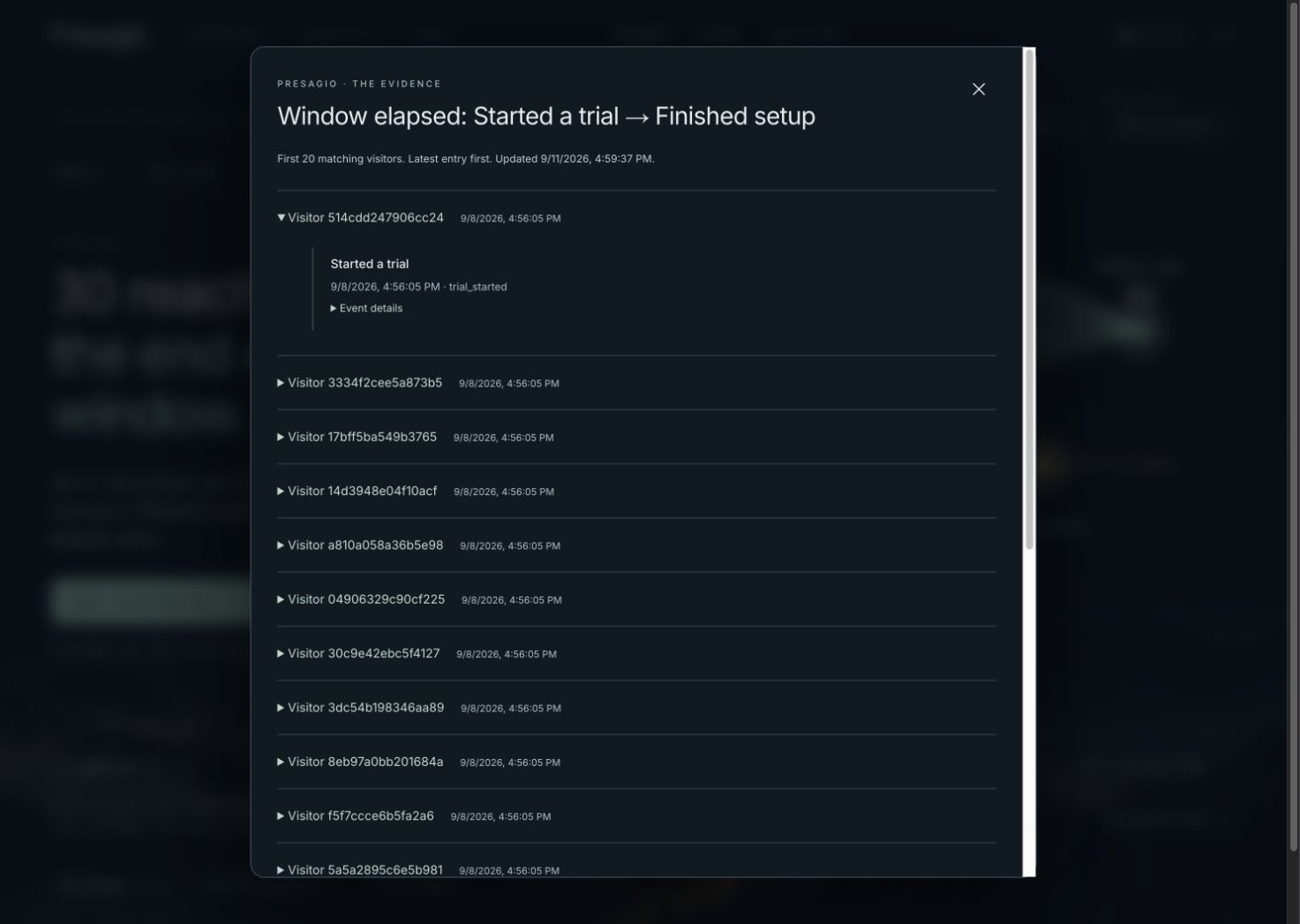
Evidence shows the anonymous source-local visitors and ordered events behind the selected group. These illustrative workspace events are not production customers or fabricated personal profiles.
Advanced version editing remains under Settings → Manage journey revisions. Existing definitions and journey versions keep their original meaning. Changing a label or publishing a later definition does not silently alter an earlier journey revision.
Read the headlines first
Entered this journey counts distinct anonymous visitors within each source who matched the first milestone in the entrant period. Reached the final milestone counts those who completed the ordered path within the selected deadline. Still within their window counts incomplete entrants who still have time.
At each transition, Presagio shows how many progressed, how many still have time, and how many did not reach the next milestone before their window elapsed. “Elapsed” is a timing classification, not proof of churn, dissatisfaction or a lost customer.
What the waves mean
The strands spread through the center and converge at milestone points. Peak spread represents a share of entrants. Exact milestone counts carry the quantitative meaning. The glow is decorative; its brightness is not revenue, event volume, confidence or activity intensity.
Aquamarine represents progression, blue represents people still within their window, and copper represents an elapsed window. Read the labeled counts and transitions when comparing groups. An empty report displays an explicit empty state instead of invented waves.
Click through to the evidence
Choose a milestone or its evidence control to see visitors who reached it, or a transition's still have time / did not reach within window control to inspect that group. Expand a visitor to see the milestone names, event IDs, session IDs and occurrence times supporting the result.
Evidence is limited to the first 20 matching visitors, ordered by latest entry. If more exist, the UI says so; do not treat the evidence list length as the total. Visitor labels are opaque and scoped. They are not names, emails or CRM profiles. Evidence clicks refresh the counts and evidence together; new processing or deletion can therefore change the totals.
12. How counting works
The counting rules are part of the product, not an implementation footnote:
- A visitor is a source-local anonymous identity. Presagio does not merge sources, browsers or devices in this beta.
- Different sessions for that same source-local identity can contribute to a journey. A journey is not necessarily one session.
- The earliest first milestone in the selected entrant period starts that entrant's clock.
- Each later milestone needs a later, distinct event. Repeated milestones cannot reuse one event twice.
- Equal occurrence timestamps use event-ID ordering. The entrant interval includes its start and excludes its end.
- The conversion window starts at each visitor's entry, not at midnight or the start of your dashboard period.
- Late processing and deletion can change later observations. Published definitions preserve meaning, not a frozen result set.
- No entrants means the completion rate is unavailable, not a misleading zero-percent conversion claim.
For example, if 100 visitors enter, 40 complete and 20 remain within their deadline, completion is 40%. The other 60 have not completed at this observation; only the 40 whose deadlines elapsed belong in an elapsed group. Do not lump the 20 pending visitors into confirmed failures.
13. Privacy, identity and delivery behavior
Consent starts as unknown for every SDK instance. Before an explicit grant, the SDK does not establish its analytics identity storage or transmit events. After grant, it uses source-scoped localStorage for anonymous identity and sessionStorage for the session. Sessions rotate after 30 minutes without a successfully buffered event; flushes and retries do not extend the session.
Storage denial degrades to in-memory identity and a diagnostic. Tabs cloned by the browser can inherit sessionStorage. Clearing storage or changing device may create another anonymous visitor. These constraints matter when comparing anonymous visitor counts to account counts from another system.
Withdrawal clears local buffers and identity/session storage and propagates a revocation signal to other same-origin instances when browser storage/signalling is available. If that mechanism is unavailable, your consent manager must coordinate the contexts. Aborting a request cannot retract an event already accepted by the server. Contact the Presagio team for server-side deletion; there is no self-service deletion screen yet.
Raw event payloads become eligible for expiration 30 days after server receipt. Cleanup runs asynchronously in bounded batches; this is not a guarantee of physical erasure at exactly day 30. The current inspector exposes a 24-hour window and journeys allow entrant periods up to seven days; stored retention and a screen's query range are different concepts. Privacy suppression blocks previously deleted subjects from being reintroduced through permitted retries. Operational backup integration is deferred; this beta does not promise host-loss recovery or high availability.
Delivery is bounded
The SDK batches up to 20 events and approximately 256 KiB per ordinary request, schedules a send after roughly two seconds, and permits one in-flight request. Its memory queue holds at most 200 events or 1 MiB. Unsent events may be lost when a page closes or crashes. Retries are bounded to eight attempts and 24 hours; there is no unlimited offline store or guaranteed unload delivery.
The service protects admission with rate, byte, concurrency and capacity limits. A retry of the same event ID and content does not create a second stored event or usage unit. A fresh track() call creates a new ID and is a new event. Admission attempts can consume collection allowance even when they do not become unique stored events. This is separate from metering; there is no active subscription checkout or billing-management UI.
14. Troubleshooting by symptom
| What you see | What to do |
|---|---|
| Google refuses access | Verify the invited Google account and ask the team to check the test-user audience. |
| “You're on the guest list” | Sign-in worked. Request Presagio admission, then choose Refresh account. |
| “Awaiting activation” | Ask the team to activate this exact project/environment/source. A key alone is insufficient. |
| SDK loads but nothing is sent | Check consent, source/key placeholders, success-handler wiring and duplicate installations. Inspect status() and browser network/CSP errors. |
| Events go to the wrong place | Recheck build environment, source ID, key and workspace/product/environment selectors. |
| Collection is refused | Check the exact website origin, key expiry/revocation and source activation. An auth refusal can pause the client; recreate it with a working configuration after correcting the cause. |
| Rate limit or temporary service-busy response | Let bounded SDK retries respect Retry-After. Do not add an aggressive retry loop. Ask the team to inspect capacity if it persists. |
| Device clock or old queued activity | Events more than seven days old or over five minutes ahead of server time are refused. Check the device clock and avoid replaying old activity as new. |
INVALID_EVENT or rejected properties |
Simplify the payload to a few safe JSON properties. Check the name, schema version, size, depth and forbidden credential-like fields. |
| Buffered or queued but no inspector event yet | Those statuses do not prove query visibility. Refresh the correct environment; if persistent, provide the event ID and approximate time to support. |
| Duplicate business actions | Ensure one SDK instance and one track() invocation per action. Retry deduplication does not merge separately generated IDs. |
| Overview is empty | Check the selected environment/source and period, source activation, consent and page-view configuration. Legacy custom business events alone do not populate Overview. |
| Overview country or context is Unknown | Some legacy events have no context; browser fields or country lookup may be unavailable. Inspect coverage. Do not replace missing values with a guessed country or direct arrival. |
| Overview exceeds its limit | Select Last 24 hours or one website source. No partial count is shown. |
| Chart days differ in duration | Seven-day charts follow selected local calendar boundaries, including daylight saving. Inspect exact bucket starts/ends; 24-hour charts use elapsed-hour buckets. |
| Attribution has no credit | Verify enabled attribution, eligible captureArrival() and conversion definition. Unknown entry history remains provisional; web context alone creates no touch. |
| Definition preview shows zero | Check exact event name/schema, property types, all AND rules, preview period and selected environment. |
| Preview or journey exceeds a limit | Choose a shorter time period. No partial count is shown. Property rules do not shrink the preview's candidate cap. |
| Journey counts differ from preview | Preview counts events; journeys count source-local visitors who meet ordered milestones and timing rules. |
| Journey appears empty | Verify first-milestone matches, published revision, environment and entrant interval. |
| Older revision did not adopt a new definition | Expected: versions are pinned. Publish a new journey revision intentionally. |
| “Cohort window has expired” | Choose Reveal the journey to refresh the period, then reopen evidence. |
| Save or publication was not confirmed | Refresh and inspect current metadata/history before another mutation. Avoid creating duplicate objects. |
| Workspace changed after returning to the tab | Re-select the intended workspace, product, environment and source before continuing. |
| Sign-in or permission disappears | Sign in again or ask an administrator to check current membership. Do not share session cookies. |
For support, share the affected workspace/product/environment, action, approximate time and timezone, error code, and a sanitized screenshot or event ID. Do not send cookies, OAuth secrets, raw customer payloads or database credentials. Use the Presagio team contact that provided your invitation; an in-product support inbox is not part of this beta.
15. Practical beta limits
These are current product constraints, not premium pricing entitlements or guarantees of sustained throughput. Ask the team before designing a high-volume rollout.
| Area | Current limit or behavior |
|---|---|
| Workspaces | Five across this beta deployment; one owned workspace per principal. |
| Projects / environments | Two projects per workspace; fixed Production and Test environments. |
| Sources / active keys | Five sources per environment; five active keys per source. |
| Event definitions | 50 per project, 20 published versions each; archived definitions still count. |
| Property rules | Up to five AND conditions per definition. |
| Journeys | 20 per project, 20 revisions each, two to five milestones; archived journeys still count. |
| Definition preview | Up to 10,000 candidates; up to five examples. |
| Journey query | Up to 10,000 candidate events; oversized queries are refused rather than partially counted. |
| Journey evidence | Up to 20 visitors for the selected group; the UI labels truncation. |
| Inspector | 50 events per page in a 24-hour refreshed window. |
| Traffic overview | Rolling 24/168-hour windows; 10,000 candidate page views; top 20 groups per ranking with omitted counts disclosed. |
| Attribution | One source, published conversion definition, 24-hour/7-day period and seven-day touch lookback; provisional source-local browser evidence. |
| Journeys | Entrant periods up to seven days; one-hour, 24-hour or seven-day conversion windows. |
| Payload retention | Expiration eligibility at 30 days from receipt, followed by bounded asynchronous cleanup; separate deduplication/suppression safeguards. |
16. A founder's operating routine
After installation: verify consent-aware tracking and stored Activity first. Then verify three deliberate business events in Test; preview definitions; publish one journey; compare the evidence to what you actually did. Ask for Production activation only when the flow is understood.
During a product review: select a consistent environment, journey revision, entrant period and completion window. Read entrants, completed and pending together. Open evidence at the first weak transition. Treat a small sample as a small sample, not a reliable trend.
Before changing the product: write down a hypothesis, such as “People reach first value but cannot see the next action.” Inspect the recorded sequence and use separate customer research to understand why. A journey shows behavior, not causation.
After a release: compare equivalent periods and pinned rules. If you change event semantics, coordinate a new schema version and definition revision. If you change the business milestone, publish a new journey revision. Keep the old revision available for an honest comparison.
17. First-launch checklist
- Google account admitted and correct workspace selected.
- Product, Test/Production environment and website source confirmed.
- Source activated by the Presagio team.
- Exact website origins listed and current public key installed.
- One SDK instance initialized in the browser.
- Consent grant and withdrawal connected to the actual consent manager.
- SDK web and attribution options explicitly configured and verified before use.
- Candidate web mode explicitly configured; one current page after grant and eligible SPA navigation verified without a duplicate initial page call.
- Sensitive paths mapped/excluded and context fields checked.
- Overview scope, browser/session counting, timezone and Unknown coverage understood.
- Successful product actions emit deliberate, non-sensitive events once.
- Site script/connect policies allow the chosen SDK and endpoint.
- Stored events inspected in the correct environment.
- Definitions previewed and published with the intended schema versions.
- Journey revision published; entrant period and conversion window understood.
- Milestone evidence checked against the expected real sequence.
- Test keys revoked when no longer needed; production key rotation scheduled before expiry.
18. Glossary and next steps
Event: one recorded action. Property: a deliberate dimension attached to it. Source: a website integration boundary. Environment: Test or Production. Definition: a versioned matching rule. Milestone: a definition version used in a journey. Entrant: an anonymous visitor matching the first milestone in the selected period. Conversion window: time allowed after that entry. Pending: incomplete with time remaining. Elapsed: deadline passed without the next milestone. Queued: durably accepted for processing. Stored: persisted and available to authorized queries.
Start in your workspace, or explore the sample experience before instrumenting your product. The sample experience is useful for orientation, but it is not evidence that your own integration is receiving data.
How Presagio uses its own analytics
Presagio uses its own SDK to understand visits, referrals and selected actions such as opening the demo, exploring a journey, viewing pricing and reaching the workspace. Collection starts only when you allow analytics. Choose Analytics privacy on any page to change your choice or withdraw.
We collect coarse page and action names, not your form contents, screen recordings, customer event data or workspace identifiers. Referrers are reduced to domains; missing referrers remain unknown. The public demo still displays a fictional dataset, independent of this site measurement. Browser identities are scoped to this website, not stitched to identities on thedevguys.in.
Guide editions
This web guide covers the founder experience. The previous PDF edition (v3) documents earlier navigation and does not include the new brief, guided journey composer or setup wizard. Use this web guide for the current screens. The downloadable PDF has not yet been refreshed.